AI features
Set up AI drafting: playbooks, policy pages and writing style
You need the Admin or Owner role, and AI features must be included in your plan. Settings → Billing lists them under Plan Features.
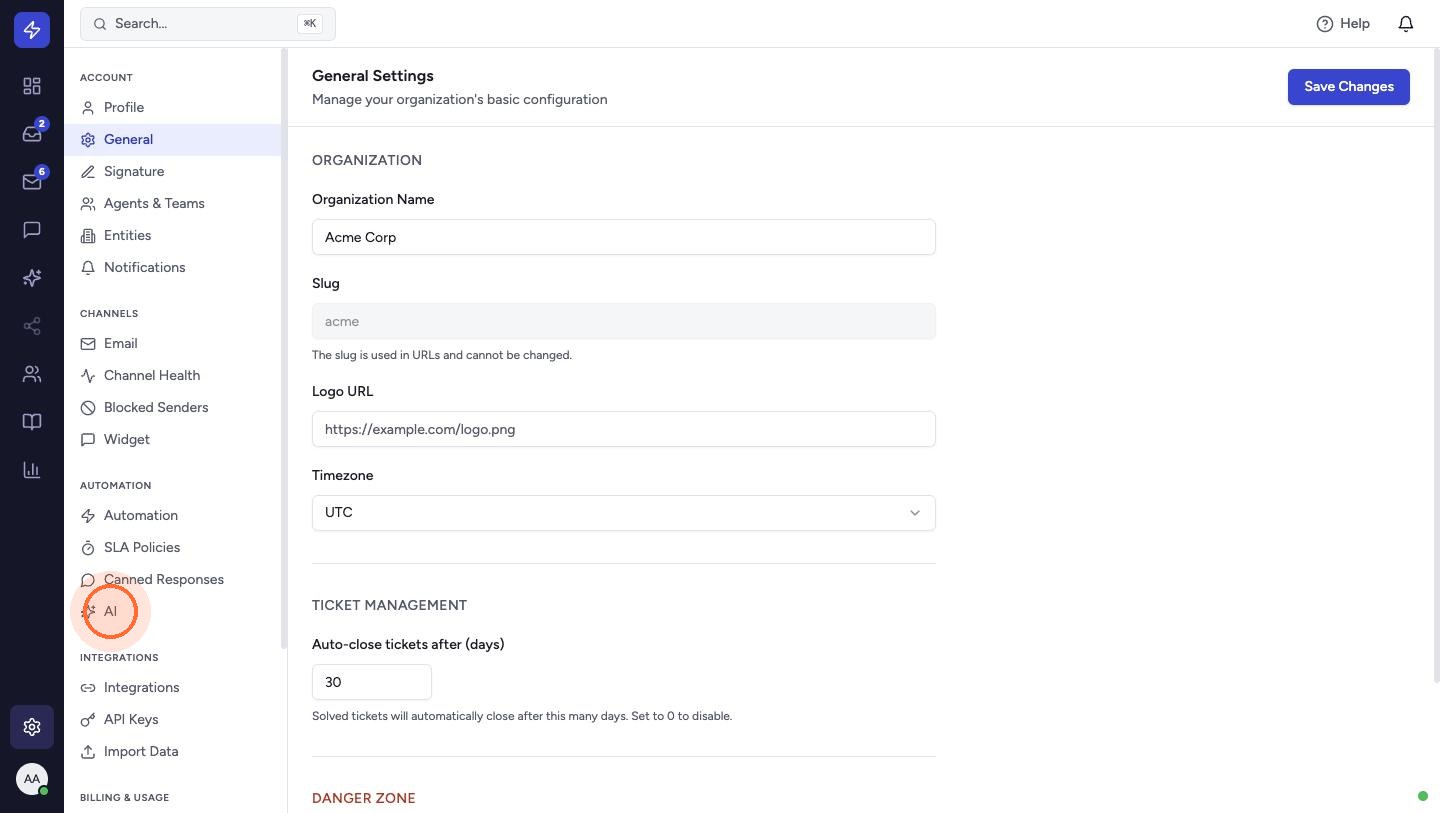
Go to Settings → AI (under Automation).
Playbooks: how you handle each kind of request
- On the Playbooks tab, click New playbook.
- Enter a Name and describe When to use it in one line. The AI picks the playbook whose "when to use" line matches the ticket.
- Write the Instructions the way you'd brief a new teammate.
- Under Channels, tick Email, Live chat or Social DMs to limit where it applies, or leave them all unticked to use it everywhere.
- Click Save playbook.
Each playbook has a toggle to switch it off, a pencil to edit it, and a clock icon to see earlier versions. Find playbook ideas groups your resolved tickets by what customers asked and drafts playbooks for request types that don't have one yet.
Policy pages: your facts
On the Policy pages tab, add pages from your own website, such as your shipping and returns policies, and click Save pages. The AI reads them live each time it drafts, so it quotes your current fees, thresholds and timelines.
Writing style
On the Writing style tab, choose a Tone (Formal, Friendly or Casual) and write short Always-on rules that apply to every reply. Switch on Draft new tickets automatically to have a draft written as each ticket arrives. Click Save.
Tip: keep facts in policy pages and "how we reply" in playbooks.
 Watch the video guideDraft replies with AIAbout 6 minutes · 16 steps