Video guides
7 short, captioned walkthroughs — each with step-by-step screenshots — covering setup, everyday ticket work, reports and AI-drafted replies. Watch them in order, or jump to the one you need.
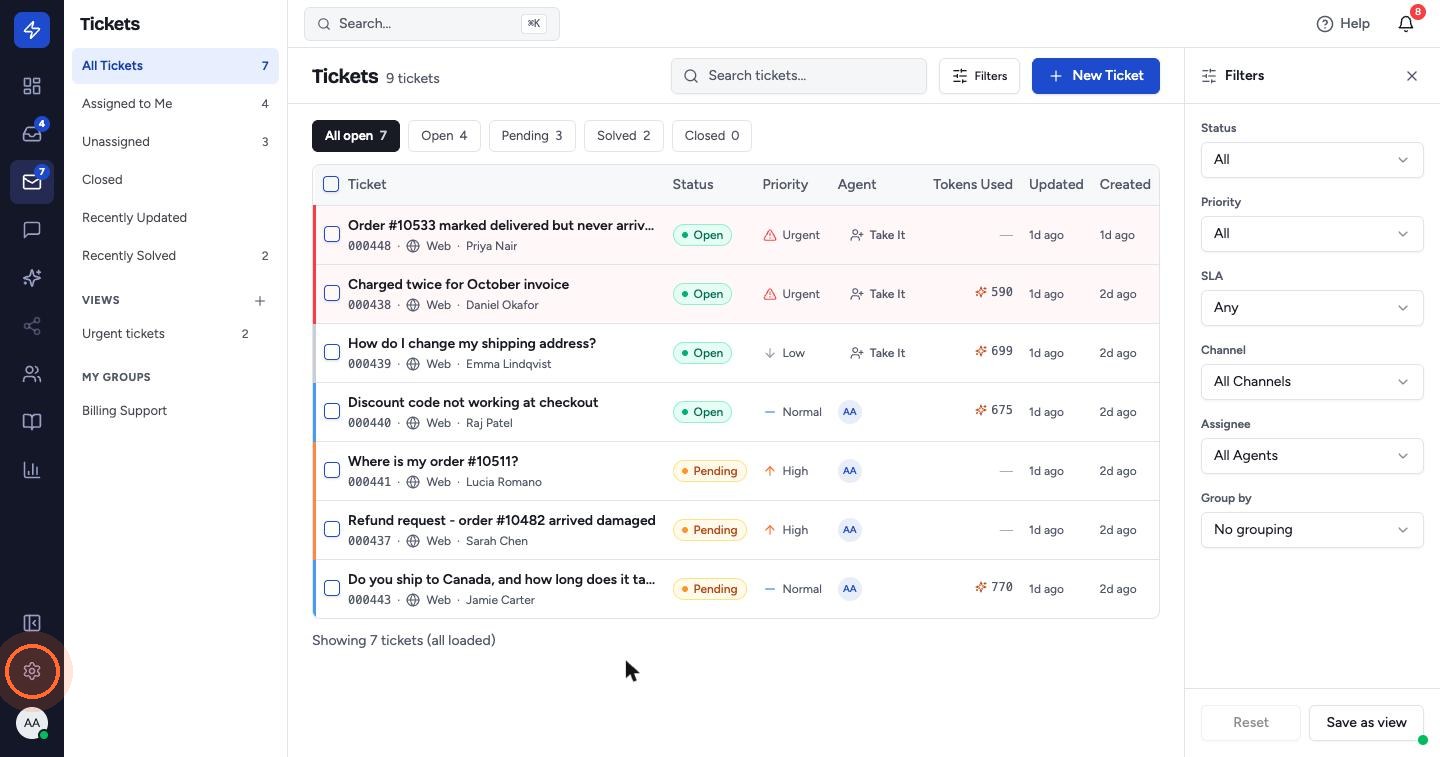 Guide 1Set up your accountEverything a new workspace needs before the first ticket arrives: organization details, agents and teams, your support email address, the emails customers receive automatically, your signature and the website widget.For admins10 min
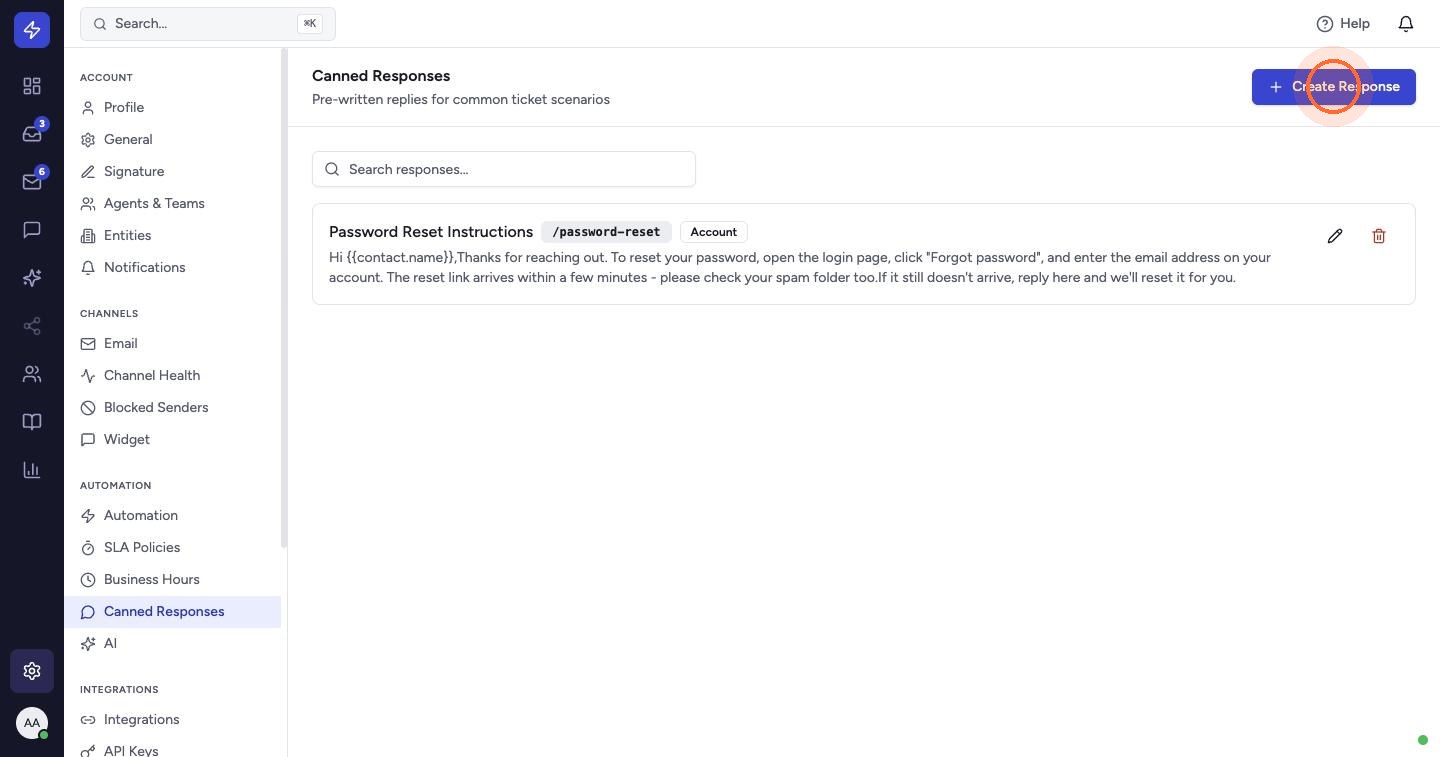 Guide 2Canned responses, SLAs and automationSave your team time on repetitive work: pre-written replies for common questions, business hours and response-time targets by priority, and rules that sort new tickets automatically.For admins10 min
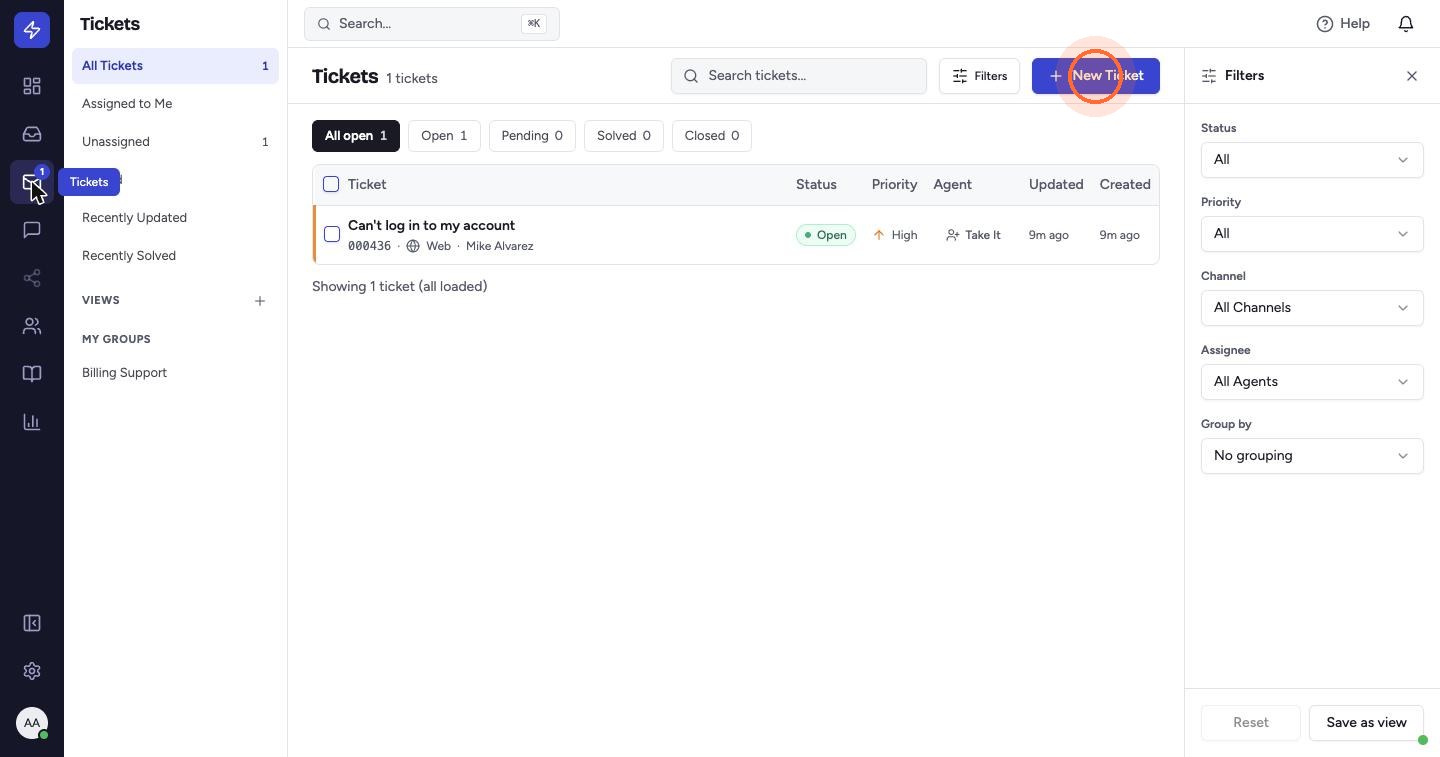 Guide 3Create and work a ticketLog a ticket on a customer's behalf, then assign it, set its priority, leave a note for your team, tag it and update its status.For support agents6 min
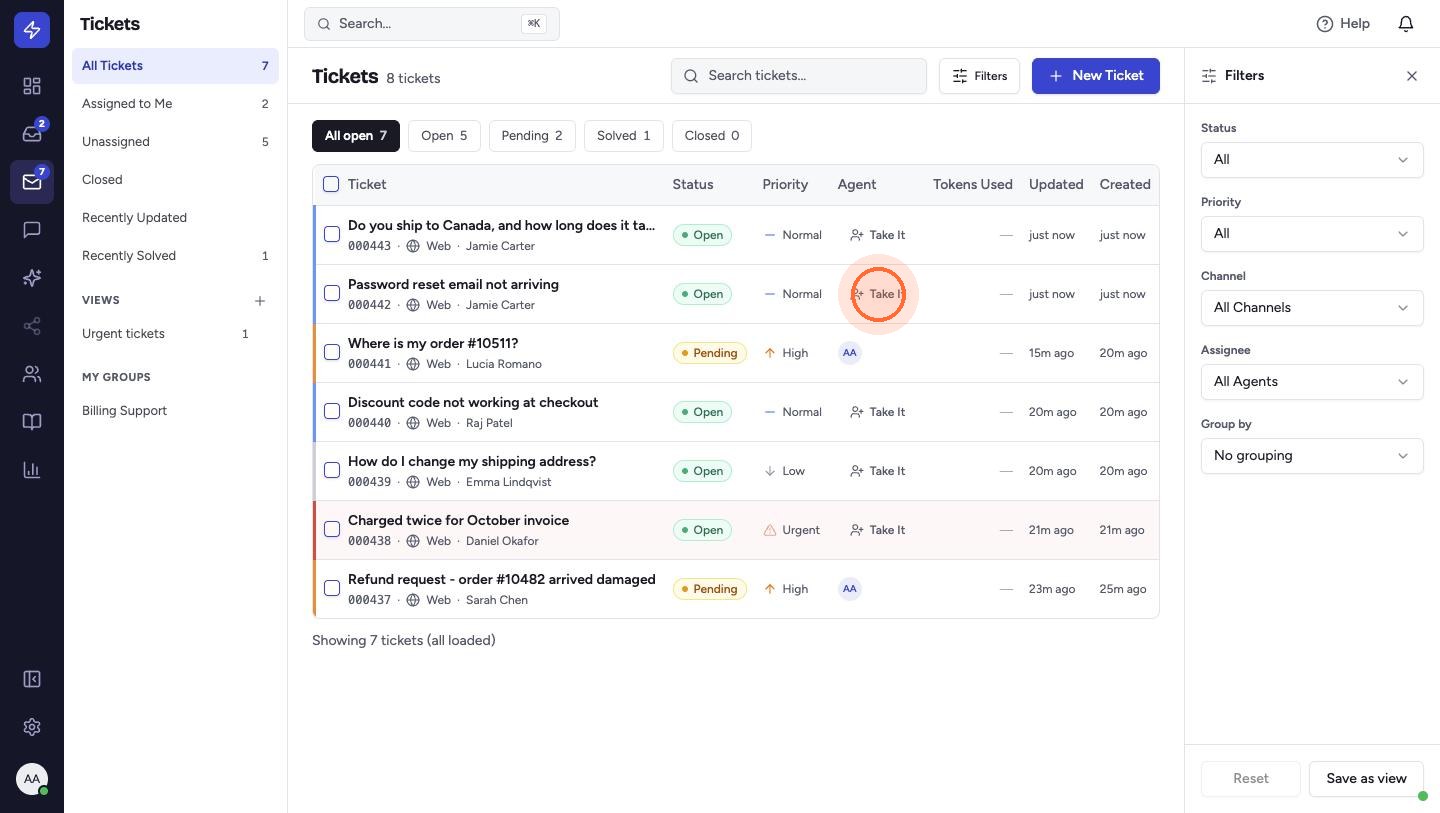 Guide 4Reply with a canned response and solvePick up an unassigned ticket, answer it in seconds with a saved reply, and mark it solved.For support agents3 min
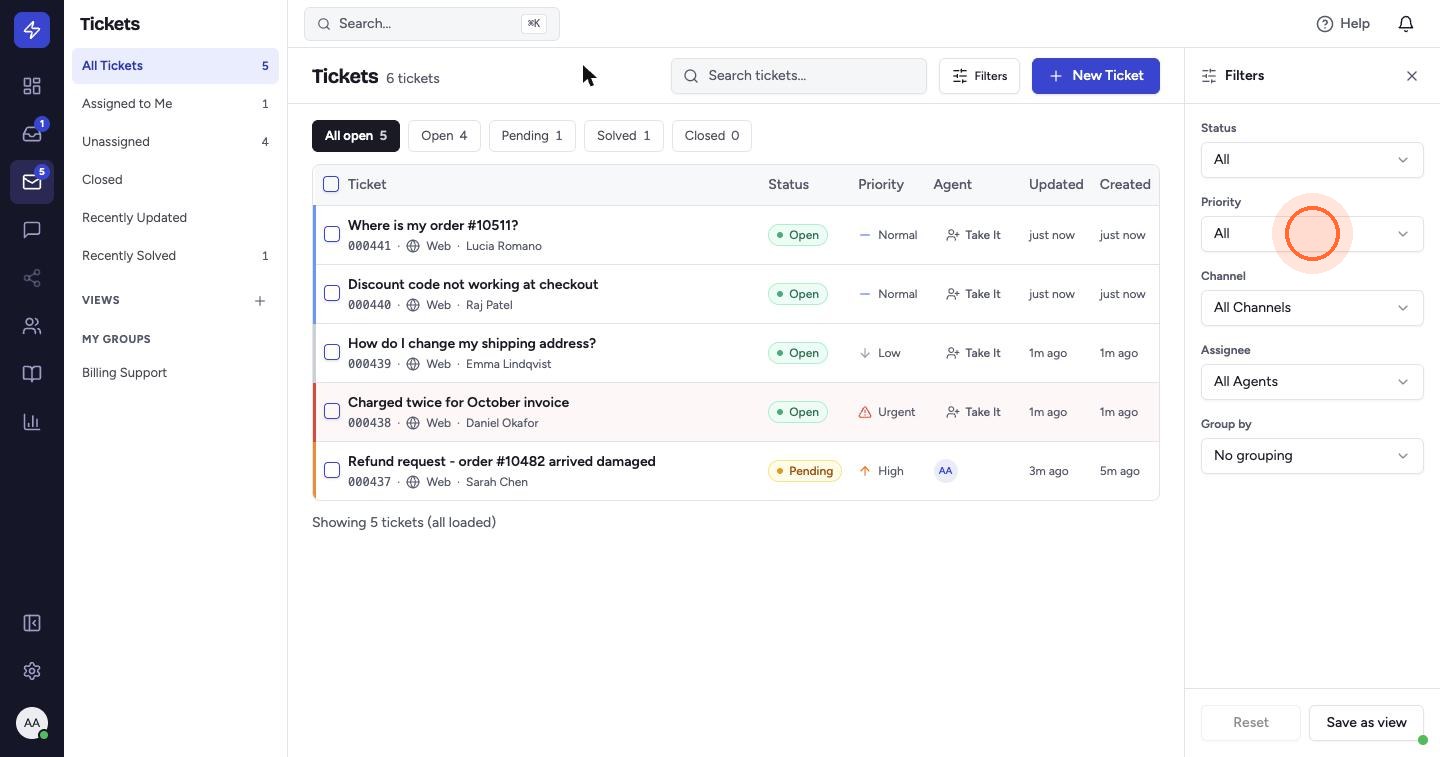 Guide 5Find tickets and read reportsNarrow the ticket list with filters, save the filters you use every day as views, search the whole workspace, and read the Reports dashboard.For agents and admins5 min
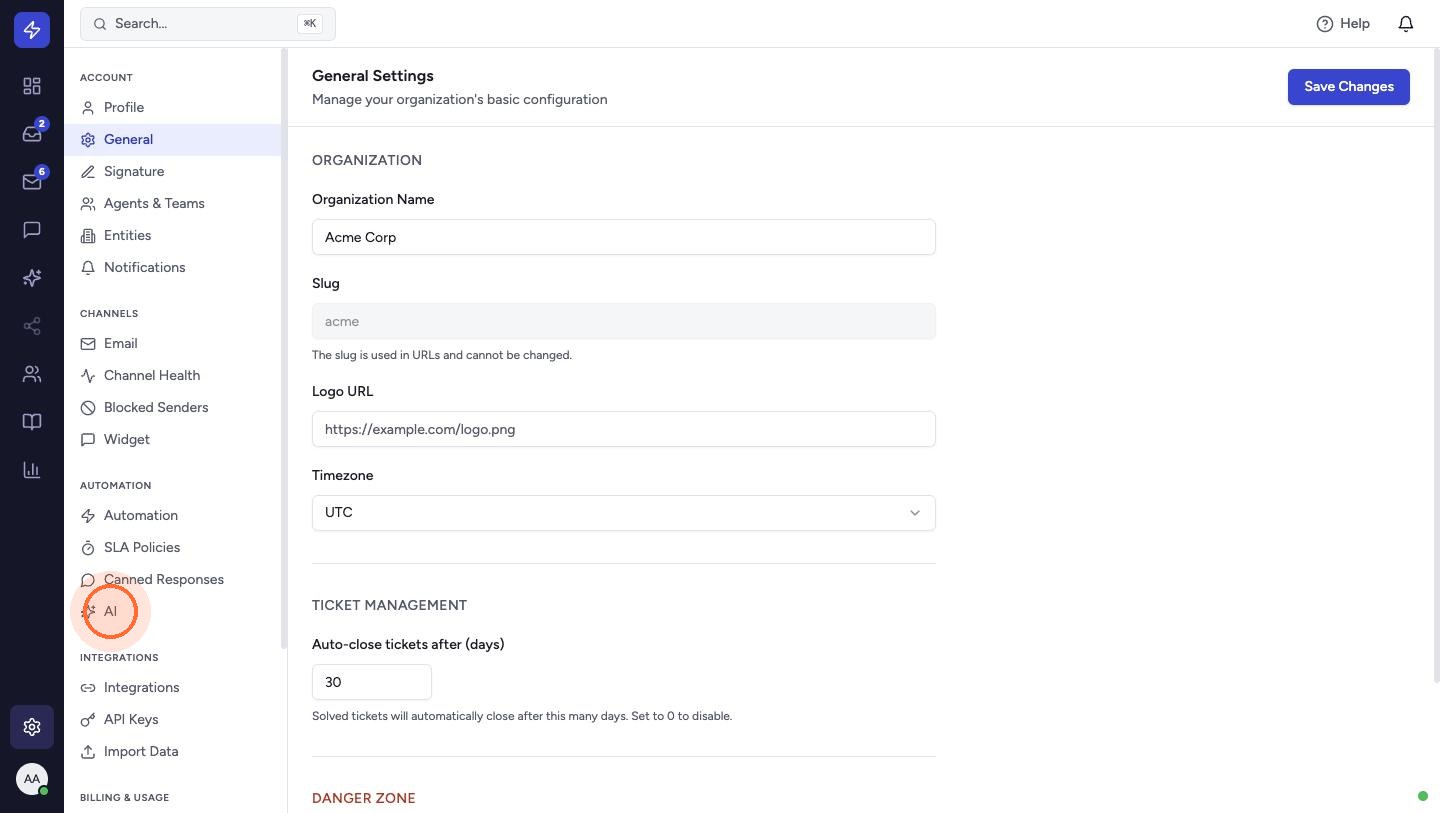 Guide 6Draft replies with AITeach the AI how your team answers common questions, then let it draft replies for you to review, edit and send. Nothing is sent to a customer until an agent approves it.For agents and admins6 min
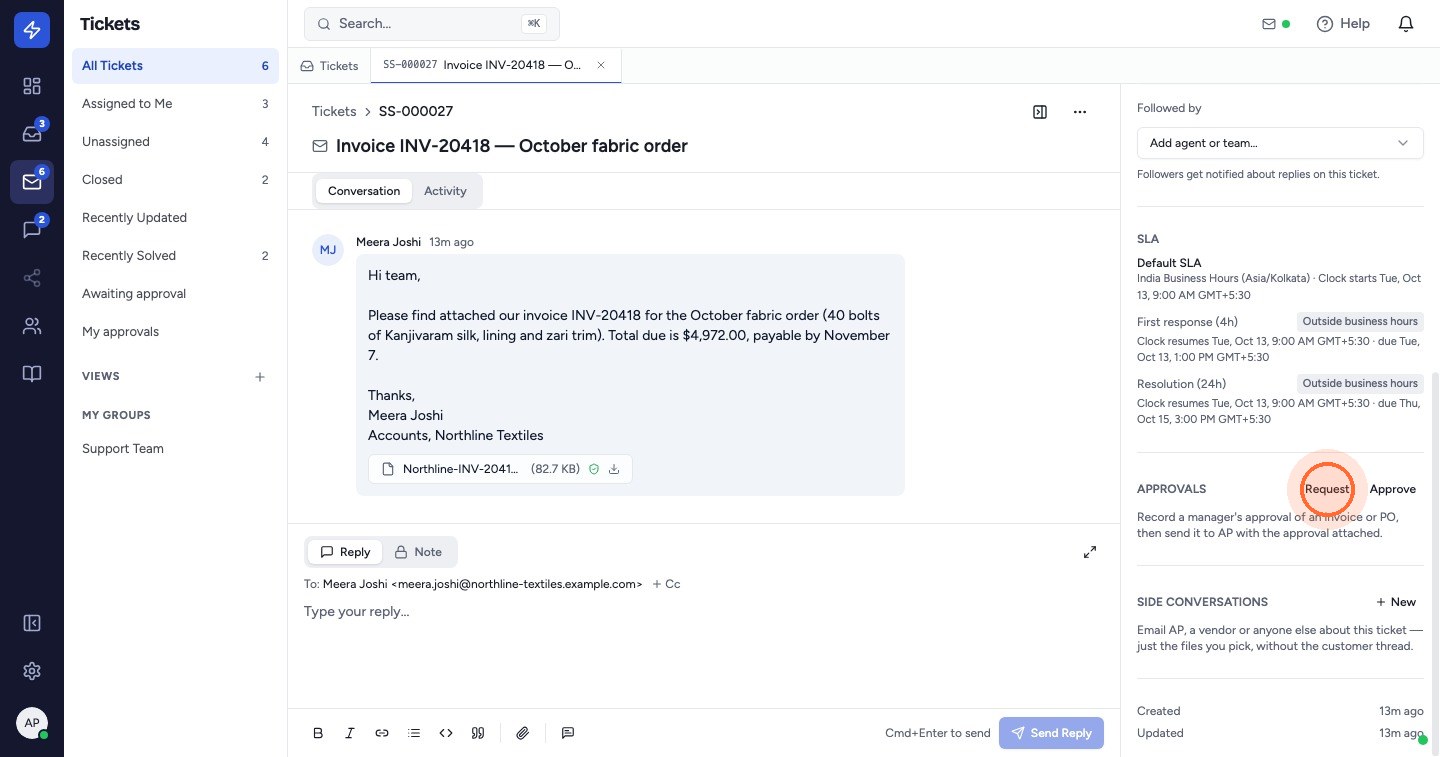 Guide 7Approve an invoice and send it to APWhen a vendor sends an invoice, quote or PO, ask a manager to approve it from the ticket, then email it to your accounts payable team in a side conversation with the approval attached. The customer thread stays untouched, and only the files you choose are sent.For agents, approvers and admins7 min
Prefer to read? Browse the help articles.
Try it with your own support inbox
Free 14-day trial on every paid plan. No credit card required.