Approvals and side conversations
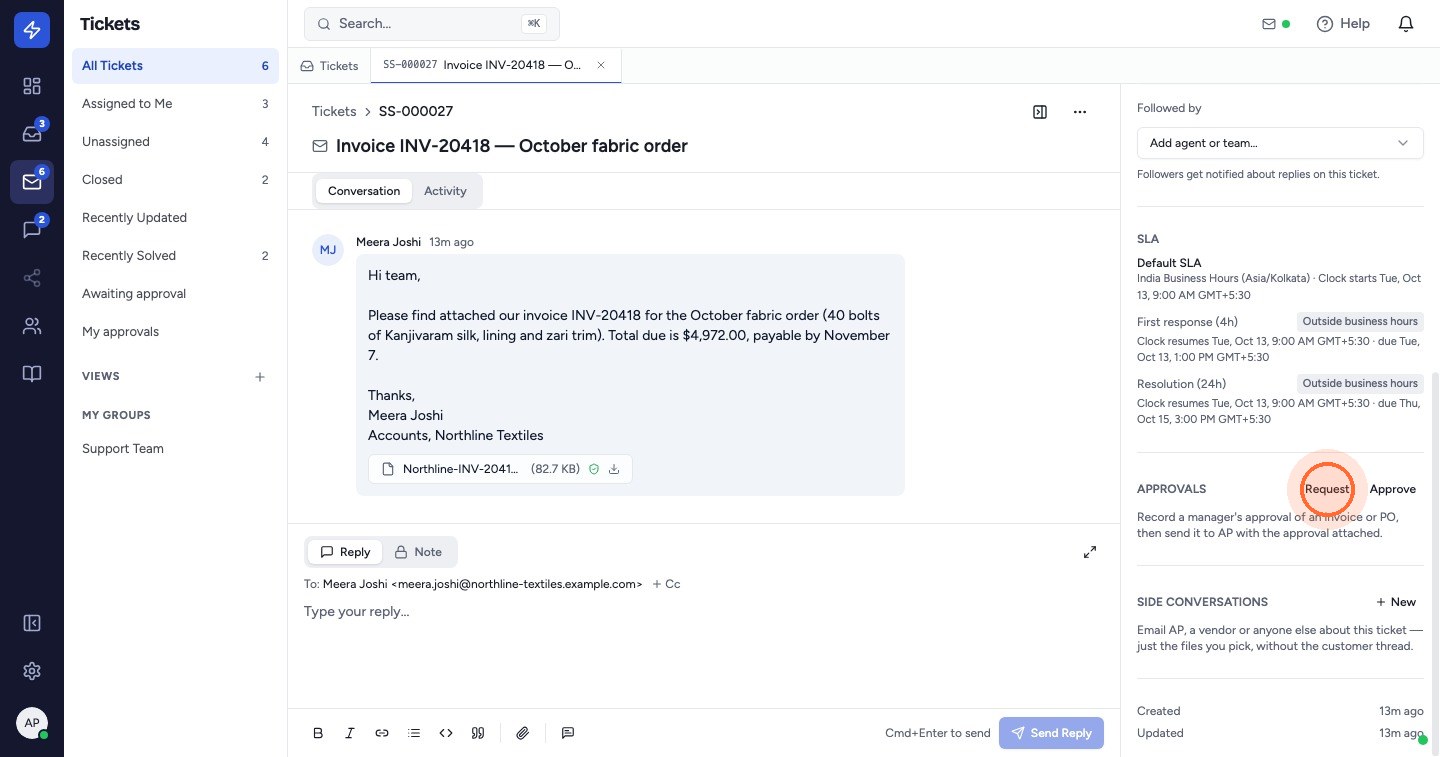
Send an invoice to AP with the approval attached
A side conversation is a separate email thread started from a ticket. The customer doesn't see it, and replies come back into the side conversation, never into the customer's conversation. Only the files you tick are sent.
- Open the ticket. In the right sidebar, under Side conversations, click New.
- Enter the email address in To (press Enter after each address). Click + Cc to copy someone in.
- Check the Subject and write your message.
- Under Attachments, tick the ticket files to send, or click Upload file to add one.
- To attach an approval, open Include approval and choose it. The files it covers are ticked for you, and the approval is added when the email is sent.
- To include the customer's latest message, tick Include the customer's latest message below yours.
- Click Send.
The email shows a green block naming the approver, the date, the files it covers and their comment, with a reference to the ticket.
Replies: when AP replies, the reply appears in the side conversation on the ticket. Reply from the box at the bottom, and click Mark done when it's finished.
You can also attach an approval to an internal note: switch the composer to Note and use Include approval.
To get the approval first, see Ask a manager to approve an invoice, quote or PO.
 Watch the video guideApprove an invoice and send it to APAbout 7 minutes · 20 steps