Approvals and side conversations
Request approvals automatically with a rule
You need the Manager, Admin or Owner role.
Ask for an approval automatically
- Go to Settings → Automation and click Create Rule.
- Name the rule and choose a trigger, for example Ticket Created.
- Add a condition that picks out the tickets, for example Subject Contains
invoice, or Sender Domain Equals your vendor's domain. - Under Actions, choose Request Approval and pick the approver.
- Click Create Rule.
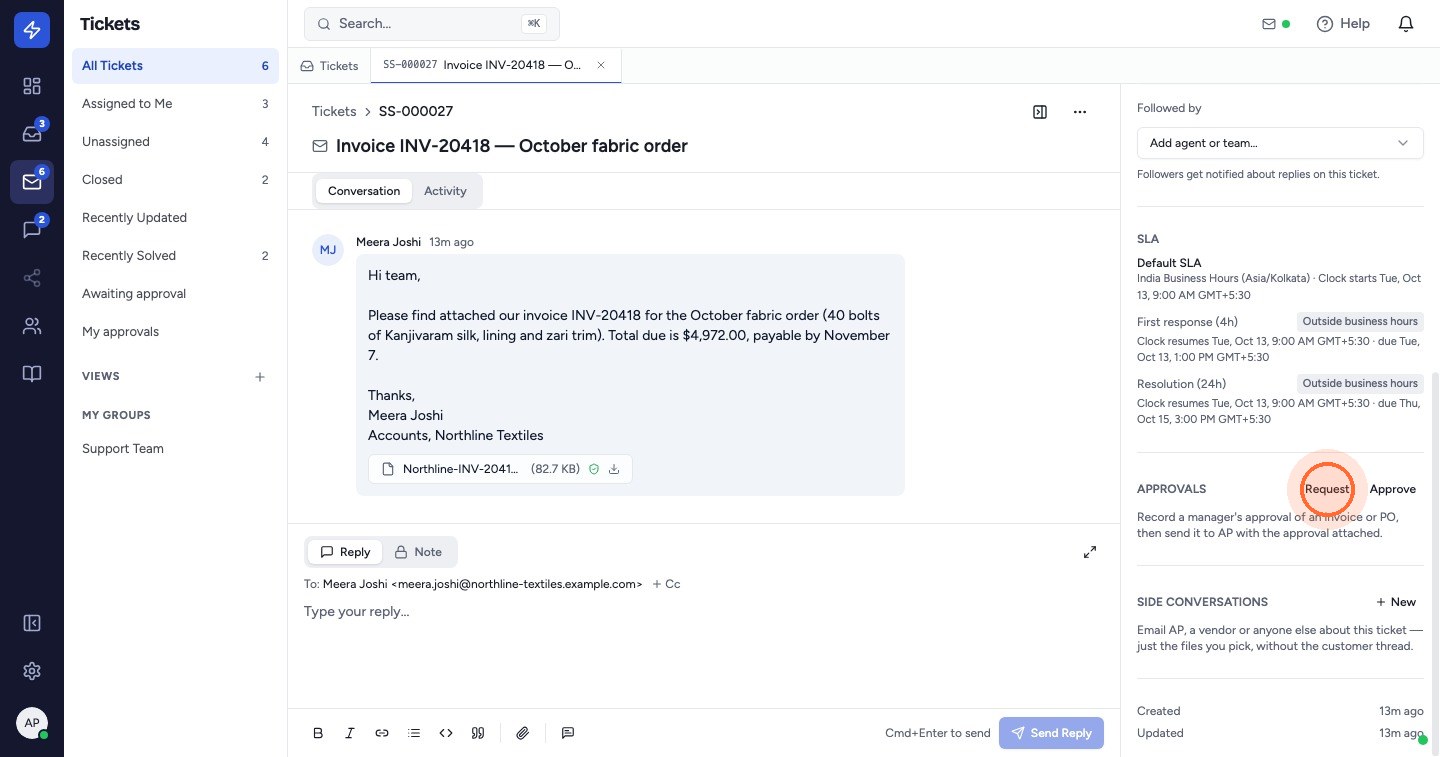
When the rule runs, it asks the approver to approve every file on the customer's conversation (inline images and files that failed the malware scan are left out). The approver gets the usual notification and email, and the ticket shows the request as asked by Automation and the rule's name.
A rule doesn't ask the same approver again while their approval is pending or approved, so a Ticket Updated rule won't repeat itself on every change. After a rejection, it can ask again the next time it runs.
Act on the decision
Create a rule with the trigger Approval Approved or Approval Rejected. For example, when an approval is approved, Add Tag approved and Assign Team to your AP team.
When a rule asked for the approval, there's no person to tell about the decision, so the notification goes to the ticket's assignee.
For the basics of rules, see Create an automation rule.
 Watch the video guideApprove an invoice and send it to APAbout 7 minutes · 20 steps