Approvals and side conversations
Approve or reject an approval request
When a teammate asks for your approval, you'll find it in three places:
- Home shows N approvals are waiting on you, with who asked and which files. Click one to open the ticket.
- My approvals in the ticket sidebar lists every request waiting on you, with the requester's note.
- The email ZippTicket sends you has a Review & decide link.
In the app
- Open the ticket. A banner at the top shows who asked, the files and their note.
- Add a Comment if you like, for example OK to pay, net 30. The comment travels with the approval when it's sent on.
- Click Approve or Reject.
From the email
Click the link, check the files, add a comment if you like and choose Approve or Reject. You don't need to sign in. The link works once and expires after 7 days; after that, decide in the app.
The decision is recorded in the ticket's Approvals section with your name, the files, your comment and the time. The person who asked is notified.
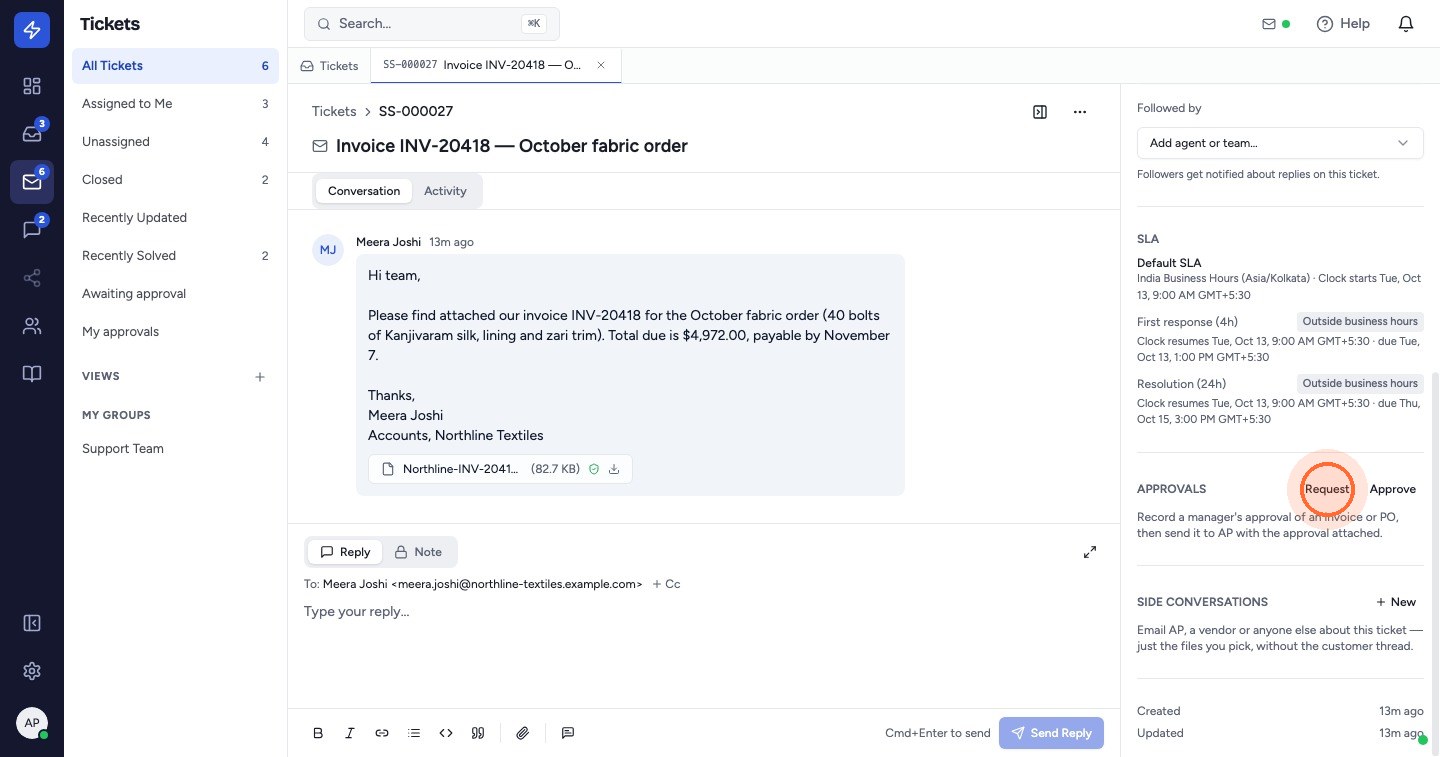
Approving without a request: if an invoice is already in front of you, click Approve in the Approvals section of the ticket to record your approval directly.
 Watch the video guideApprove an invoice and send it to APAbout 7 minutes · 20 steps